
AIGC Mesh Optimization: Preparing AI-Generated 3D Models for Unity Games
Waiting hours for a character artist to bake a single crate is a relic of the past. AI can spit out a model in seconds, but raw geometry often chokes your frame rate.
AIGC mesh optimization cleans AI-generated 3D models so they run smoothly in Unity. Raw AI output carries too many polygons and messy topology. Smart optimization cuts triangle counts, builds LOD levels, and bakes normal maps. The result? Game-ready assets that look sharp and perform well on any platform.
If you are building with AI-generated models, you already know the bottleneck is not generation anymore. It is optimization. Here is the playbook for taking raw AI meshes and turning them into assets that ship.
Start building with the Genies Avatar SDK
What Is AIGC Mesh Optimization and Why Does It Matter?
AIGC mesh optimization is the process of reducing polygon counts and fixing topology on AI-generated 3D models so they perform well in real-time game engines like Unity. Without it, those fast-generated assets turn into frame-rate killers.
AI can build a shape in seconds, but the raw result is often too heavy for game engines. Optimization trims the fat. It turns a dense, messy pile of triangles into a sleek asset that runs well. This step is the bridge between a cool idea and a game that does not lag.
What optimization targets
Triangle counts: The biggest task in optimizing 3D meshes for performance is cutting the triangle count. A high count slows down how fast a game can draw images on the screen.
Topology cleanup: Fixing how mesh lines flow ensures characters move and bend without looking strange, especially for animated assets.
Build speed: An AI-to-Unity pipeline cuts asset production from 4-12 hours down to 5-15 minutes, letting small teams ship faster.
Experts at Cal Poly say cutting the polygon count is the first goal for any real-time artist. Every triangle you remove is a frame your GPU does not have to calculate.
Refining shapes for games
Raw AI output often has too much detail in the wrong places. It might put lots of faces on a flat wall where only two are needed. Good optimization fixes the mesh topology and UV maps. Proper topology ensures that a character can move and bend without looking strange. While AI handles static props well, items that move need a closer look.
Cutting down build times
In the past, making a single 3D asset took a pro 4 to 12 hours. Now, an AI-to-Unity pipeline takes just 5 to 15 minutes. This shift lets small teams build big worlds fast. By using pro art skills, you can bridge the gap between deep detail and engine speed. Experts from Carleton College note that this work makes sure models play nice with the game engine. Optimization matters because it lets you ship faster without hurting how the game feels.
What Are the Polygon Count Targets for Every Platform in Unity?
Platform polygon budgets vary widely: mobile targets 5,000-10,000 triangles per mesh at 30 FPS. Desktop targets 50,000-100,000 at 60 FPS, and VR pushes up to 2 million at 90 FPS. Know your target before you optimize.
Every 3D model is made of points, lines, and faces. The polygon count of a mesh has a big effect on how fast a game engine draws it. For this reason, you must reduce triangles while you keep the look sharp. When you work with AI-made assets, this task is the heart of AIGC mesh optimization. High triangle counts can slow down your game and cause lag for your players.
Platform Performance Budgets
Mobile phones have smaller power limits than gaming PCs. You should set clear goals for your assets based on where your game will run. These targets help you keep a steady speed. This is vital for a good game feel and flow. If your models are too heavy, the hardware will struggle to keep up.
Platform | Target Frame Rate | Triangle Budget | Texture Size |
|---|---|---|---|
Mobile. | 30 FPS. | 5,000 - 10,000. | 1024 x 1024. |
Desktop. | 60 FPS. | 50,000 - 100,000. | 2048 x 2048. |
Virtual Reality (VR). | 90 FPS. | 1 - 2 million. | 4096 x 4096. |

Mobile games often target 30 frames per second. These games use 5,000 to 10,000 triangles for each mesh. This keeps the load low on phone chips and saves battery power. Desktop games can handle much more. They often use 50,000 to 100,000 triangles at 60 frames per second. VR needs the most power of all. These games target up to 2 million triangles for smooth motion at 90 frames per second.
Using Level of Detail Systems
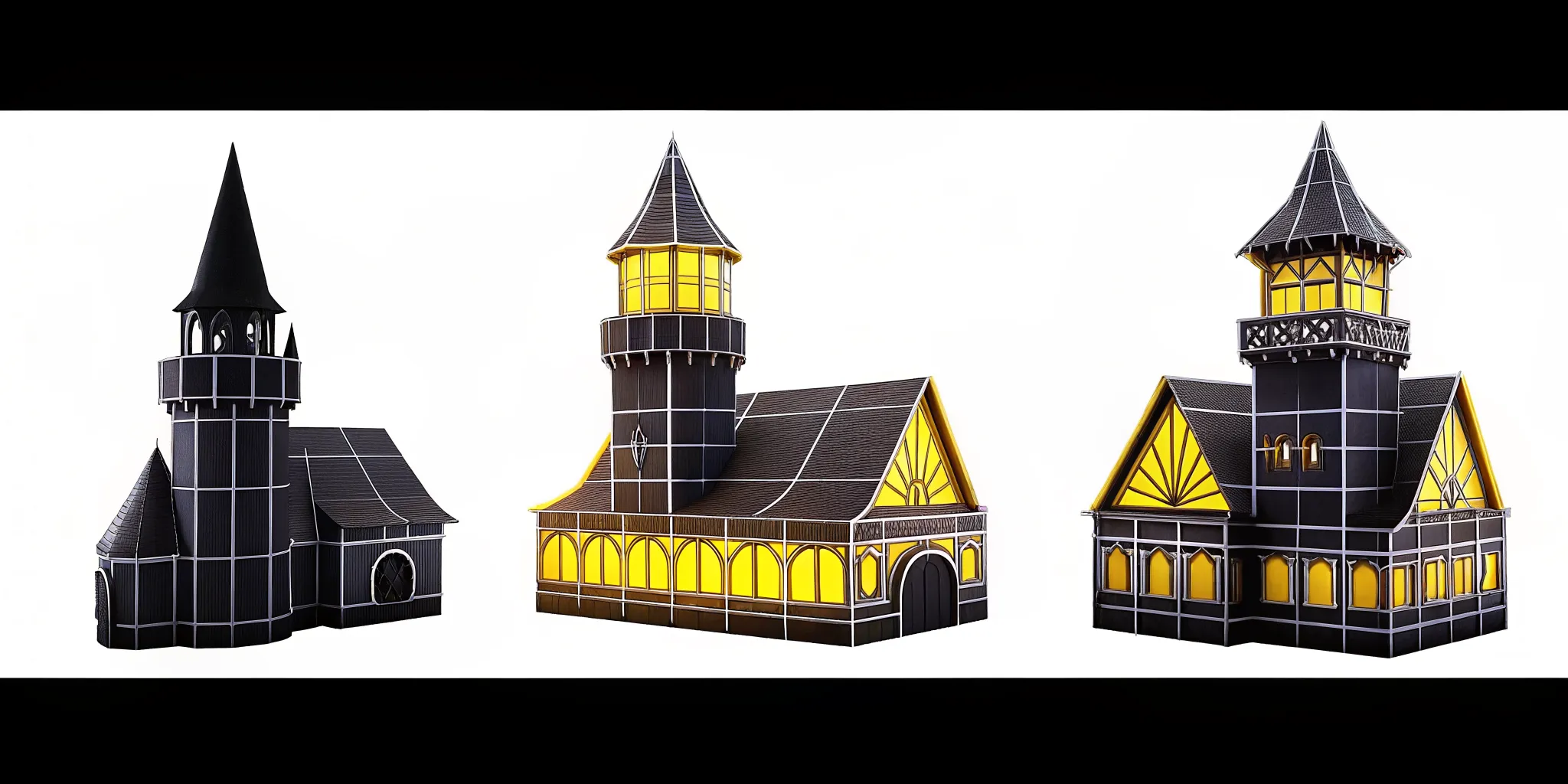
Unity has built-in tools to help you manage your asset budgets. One common way is a Level of Detail (LOD) system. This system swaps a 3D model for a simpler version as it moves far from the camera. This cut in detail helps the GPU run faster without the player seeing a change in the view. It is an easy way to save on draw calls and boost speed. Lowering the total triangle count is often the biggest challenge for a technical artist. You should put more triangles in the parts of the mesh that define its silhouette. This keeps the model looking good even when the poly count is low. For static objects, you can use very few triangles. For characters that move, you may need a bit more detail in the joints.
Integrating Optimized AI Assets
AI tools can make 3D models fast. But the raw files from these tools are often too big for a real-time game. Using good mesh optimization strategies lets you use these assets without slowing down your project. This is key for scenes with many characters on screen at once. You should always test your models on the target hardware to find any lag. With the Genies Avatar SDK, you can add high-quality characters to your Unity projects. These dev tools are separate from Genies Chat, the consumer product where AI personas come to life with animated characters who show real-time tone and mood.
The Complete Workflow: From AI Generation to Game-Ready Unity Assets
The full AI-to-Unity pipeline runs in six steps: generate the base model, export in the right format. Import into Unity, optimize the mesh, set up LOD levels, and verify load times. Each step has specific settings that separate a usable asset from a broken one.
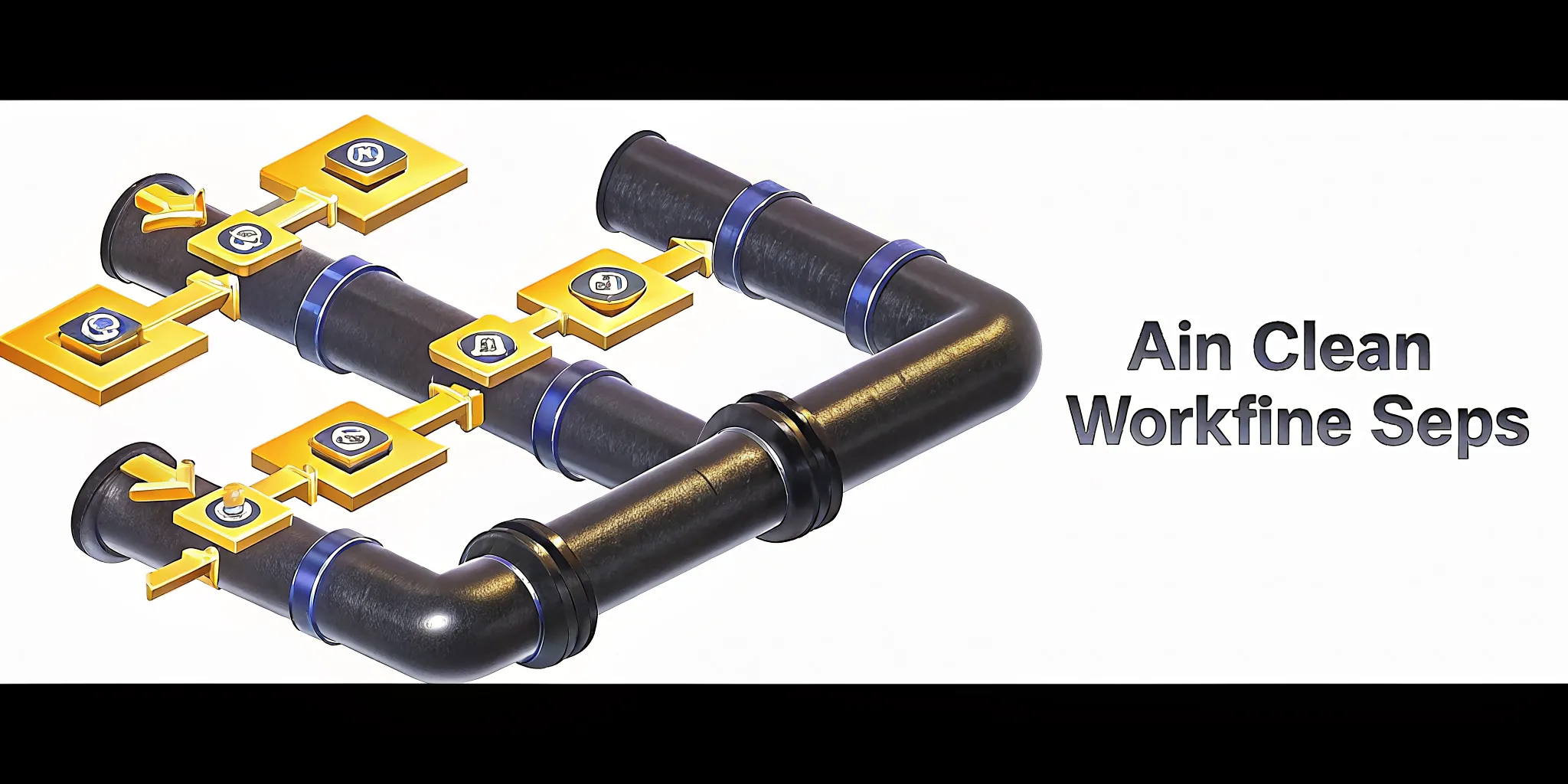
Making 3D models once took a long time. A skilled artist would often spend 4 to 12 hours on one model. Today, AI tools can build these same models in under ten minutes. This speed helps teams build more, but speed is only half the work. Raw files from an AI tool often have too many points for a game to handle. To fix this, you need a way to turn raw meshes into light, fast assets.
Six Steps to a Game-Ready Pipeline
Generate the base model. Start by using your AI tool of choice to build the mesh. Try to use tools that let you set a target poly count before the tool starts its work.
Export your work. Choose the right file format for your needs. Use FBX for characters and items that move. GLB works well for static items like rocks or trees.
Bring files into Unity. Import your model into your game project. For the best results, use Unity 2021 LTS or a newer version. These versions play well with the latest AI output files.
Start AIGC mesh optimization. You must lower the vertex count to hit your speed goals. In 3D art, every model is built from points, edges, and faces. The main goal is to reduce the total triangle count of the mesh.
Set up LOD levels. Build different versions of your model for different distances. Use the full model when the player is close. Switch to a low-detail version when the player is far away.
Verify load times. Check how long it takes for the game to load the asset. A good rule is to keep load times at 3 seconds or less for each item. This keeps the game fast for everyone.
Common optimization pitfalls to avoid
Skipping LOD levels: Without level-of-detail swapping, every asset draws at full resolution regardless of distance, tanking your frame rate.
Over-reducing unique assets: Hero characters need higher budgets than background props. Apply the strictest cuts to crowd assets, not your main cast.
Ignoring draw calls: Poly count is only half the equation. Merge materials and batch similar meshes to keep the GPU busy with fewer commands.
Optimizing the Visual Silhouette
When you reduce polygons, focus on the parts that people see most. The outer shape of a model is what defines its look in a game. You should place most of your polygons in areas that build this visual silhouette. This keeps the model looking sharp while you cut parts from flat or hidden areas. This helps you save power without hurting how the game looks.
The Goal of Technical Mesh Work
The speed of a game depends on how fast the engine can draw its world. A high polygon count can slow down the render speed of your mesh. This is why game-ready 3D asset optimization is so vital. By focusing on the outer shape and reducing waste, you keep the game fast. This lets you add more characters and items without dropping the frame rate.
Topology, UVs, and Materials: What AI Gets Right and Wrong
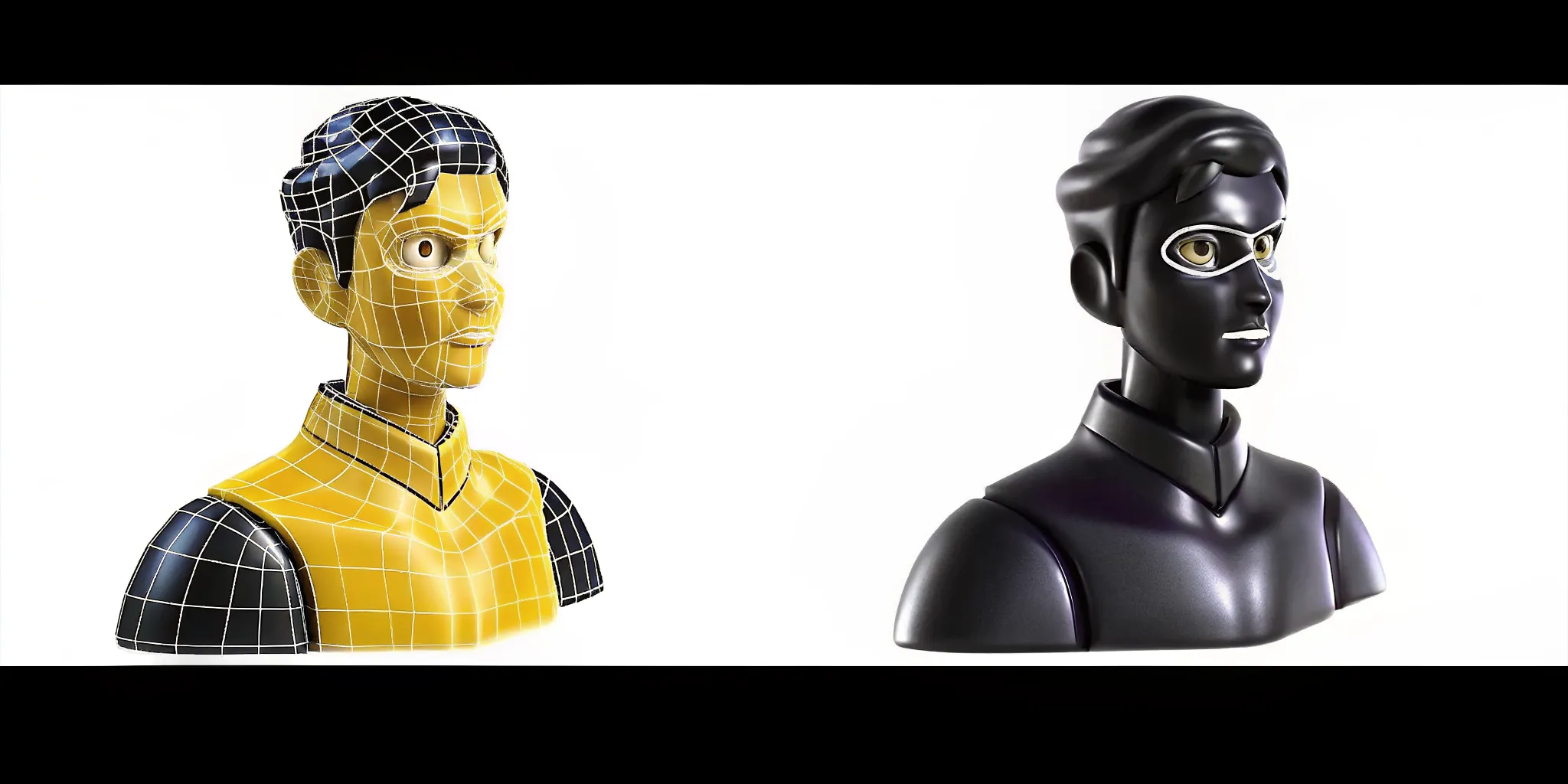
AI excels at PBR textures, normal maps, and UV unwrapping. But AI topology is often messy with too many triangles in the wrong places. For static props, AI output is usually fine. For animated characters, manual retopology is still the standard.
AI strengths in PBR and UV maps
PBR maps out of the box: Most AI tools give you full albedo, normal, and metallic maps that work in Unity immediately, no extra baking required.
UV unwrapping handled: AI manages UV layouts well for most items, saving hours of manual flattening.
Normal maps for detail: Normal maps add fine surface detail without extra triangles. This lets you cut down the polygon count while keeping a high-fidelity look on mobile.
The limits of AI topology
While AI is great at textures, the mesh shapes can be messy. Topology refers to the way the lines of a mesh are laid out. AI often makes meshes with too many small triangles. This can slow down your game. Bad topology also makes it hard to rig or animate a model. If a model needs to move, the lines must follow the joints of the body.
For static props like rocks or furniture, AI topology is usually good enough. But for characters, you often see too many triangles in the face or hands. This makes it hard for the model to bend or smile. This is why you must check the technical mesh requirements before you put an AI asset into your game. Clean topology is needed for smooth movement.
When to use manual retopology
Retopology is the act of making a clean mesh over a high-poly source. It is like tracing a drawing with clean lines. You should use this for any asset that needs to move or deform. It helps you keep the detail of a high-poly model while using a low-poly mesh. This is key for hitting mobile targets of 5,000 to 10,000 triangles per mesh.
You can use tools like Blender to fix AI meshes. Often, a quick pass is all you need. You can merge small triangles into larger quads. This makes the mesh easier to work with in Unity. The Genies Avatar SDK makes this process easier by giving you tools to bring these characters to life once the mesh is ready. It handles the logic so you can focus on the art.
In most cases, you can use the AI mesh as a base. If the asset is just for the background, the AI output is fine. But for a lead character, a bit of manual work goes a long way. It ensures the model works well on all screens and devices. This balance of AI speed and manual polish is the best path for modern teams.
FBX vs GLB for Unity: Which Format Should You Use?
FBX is the standard for rigged characters and animated assets in Unity. GLB works well for static props and quick prototyping. Pick FBX for anything that moves, GLB for everything else.
When you finish your 3D asset in an AI tool, you must pick a file type. The choice often comes down to FBX or GLB. Each type has its own pros and cons for Unity users. Picking the right one is a key part of AIGC mesh optimization. It affects how fast your game runs and how much work you have to do after you import the file.
FBX for rigged actors
FBX is the top choice for hard Unity work. It handles bone systems and shape keys with care. If your AI asset needs to walk, talk, or jump, FBX is the best way. Tools like Meshy and Tripo send out FBX files that keep these bone details. This format is the pro choice for a reason. It gives you deep control over how Unity reads the model data.
FBX files let you keep many moves in one file. They offer more ways to fix how your model looks and acts in the engine. But these files can be big. You should use texture channels to pack data to save space when you use this format. This trick helps keep your game light even when using high-detail AI models.
GLB for still props
GLB is a small format that keeps all parts in one single file. It holds the mesh, skins, and maps in one spot. This makes it great for still items like trees, crates, or tools. Many AI tools like Sloyd use GLB because it loads fast in the game. It is a plug and play format that works well for fast building. It is a smart move for AIGC mesh optimization when your asset does not need a rig.
Using GLB can help with game-ready 3D asset optimization for your game scenes. It stops you from losing image paths when you move files between folders. This format works well for phone games where disk space is tight. But GLB is not as good as FBX for tough rigs. It can be harder to edit once it is inside Unity compared to the FBX format.
Feature | FBX Format | GLB Format |
|---|---|---|
Best use: | Animated actors and NPCs. | Static props and items. |
File size: | Larger due to more data. | Smaller and compact. |
Animation support: | Full support for rigs. | Basic animation support. |
Textures: | Stored in side folder. | Bundled in one file. |
Editability: | High in most 3D tools. | Lower for deep edits. |
Most AI platforms now let you pick your file type before you export. For hero characters using the Genies Avatar SDK, FBX is the clear choice. Use GLB for environment props to keep build times fast. This mix keeps your game running smooth and makes sure your main characters look great on every screen.
What AI Tools Handle Mesh Optimization Best in 2026?
Meshy, Sloyd, Tripo, Style3D, and Rodin AI lead the market in 2026. Each offers platform-specific polygon budgets, smart low-poly modes, and direct FBX and GLB exports that plug straight into Unity.
The year 2026 has brought new tools that focus on making 3D models ready for games right away. In the past, a skilled artist might spend 4 to 12 hours making one 3D asset. Today, AI helps teams reach that goal in minutes. By using these platforms, you can keep your Unity projects fast without losing a good look.
Leading AI Platforms for Unity
Meshy: A top choice for teams who need game-ready files. Works with FBX and GLB. Uses smart settings to keep triangle counts under control.
Sloyd: Lets you set poly count targets based on your platform. Pick low goals for mobile or higher for PC. Helps meet technical mesh needs without extra work.
Tripo: Aims to make assets ready for Unity 2021 LTS or newer. Uses AI to clean up the base shape of your models for a smoother import.
Smart Low-Poly and Local Editing
New Smart Low-Poly toggles have changed how we handle mesh density. Tools like Style3D use these toggles to keep models within a set budget. Instead of just cutting parts, the AI looks at the shape of the model. It keeps the vital parts while thinning out areas that do not need much detail. This saves time and keeps your game looking sharp.
Rodin AI has also updated its tools with Gen-2 features. It now allows for local mesh work. This means you can thin one part of a model while keeping other parts dense. Say you want a high-poly face but a low-poly body. This level of control used to take hours in old software. Now, it is a key part of the Avatar SDK performance rules used by many teams. It gives you the power to put detail only where it counts.
How the Genies SDK Fits Into the Optimized Asset Pipeline
The Genies Avatar SDK gives Unity developers pre-optimized, game-ready characters that already meet each platform polygon budget. The Smart Avatar SDK adds AI behavior layers like personality, memory, and real-time expression for NPCs and companions.
Genies is an AI avatar technology company powering the visual and embodiment layer for AI. Through the Genies SDK, developers bring AI to life as fully realized personas that look, think, behave, and play like living identities. Genies operates across AI persona, NPC, agent, creator, entertainment, gaming, consumer, and enterprise use cases.
Bring characters to life with the Avatar SDK
The Genies Avatar SDK provides a complete system for integrating high-fidelity, customizable, game-ready characters into Unity projects. It handles avatar generation, a modular in-game editor, a clothing system, and cross-game avatar interoperability. The SDK ships with meshes that are already optimized per platform, so you do not have to manually retopologize every character. This matters because thousands of developers are already building with the Genies Avatar SDK, and the company has raised $200M from Silver Lake, BOND, and Bob Iger.
Add behavior with the Smart Avatar SDK
The Smart Avatar SDK adds the AI behavior layer: personality, memory, and real-time expression for NPCs. This is separate from the rendering and character customization in the Avatar SDK. Together, they let you ship characters that react and adapt in real time without writing complex animation logic from scratch. Genies invested $100M and 5 years of R and D to build this visual and embodiment layer for AI.
From Chat to custom games
Genies Chat is where AI personas come to life. Instead of trading messages with a text box, users interact with fully animated IP characters who match tone, expression, and behavior in real time. Partners like Dream and Mo Vlogs already have characters live. While Genies Chat is a consumer product, the SDKs are standalone developer tools. The Genies Avatar SDK, Art Forge SDK, and Smart Avatar SDK let you build your own worlds with characters that fit your platform performance budget.
Genies has partnered with major organizations including MLB Players Inc., the National Basketball Players Association, WEBTOON, Sanrio, King Records, Kodansha, and others. Several partners have 100M+ monthly active users.
Frequently Asked Questions
How can I reduce polygon counts for AI-generated models in Unity?
Use Unity built-in Mesh Simplifier or third-party tools like Simplygon. You can also run the AI model through retopology in Blender before importing. Focus on preserving the silhouette while removing hidden or flat-area geometry.
What is the recommended polygon count for mobile games in Unity?
Target 5,000 to 10,000 triangles per mesh for mobile games running at 30 FPS. Use LOD systems to swap in lower-detail versions as the camera moves away. Normal maps help preserve surface detail without adding geometry.
What file format should I use when importing AI models into Unity?
FBX is the standard for characters and animated assets. It handles bone rigs, shape keys, and animation data. GLB is better for static props and environment pieces because it bundles everything into a single compact file.
What is the typical time frame for the AI-generated model-to-Unity workflow?
The full pipeline from AI generation to a game-ready Unity asset takes 5 to 15 minutes. This includes base generation, export, import, mesh optimization, LOD setup, and load time verification.
Ready to build with optimized AI characters in Unity?
AI-generated models are only getting faster. But raw geometry still needs the human touch to perform well in real-time engines. The Genies Avatar SDK removes the hardest part of that equation by delivering pre-optimized, platform-ready characters that plug directly into your Unity build.
Whether you are building a mobile game with tight triangle budgets or a desktop experience with high-fidelity NPCs. The Genies SDK handles the optimization layer so you can focus on gameplay. Explore the Genies Avatar SDK documentation to see how optimized AI characters fit into your next project.