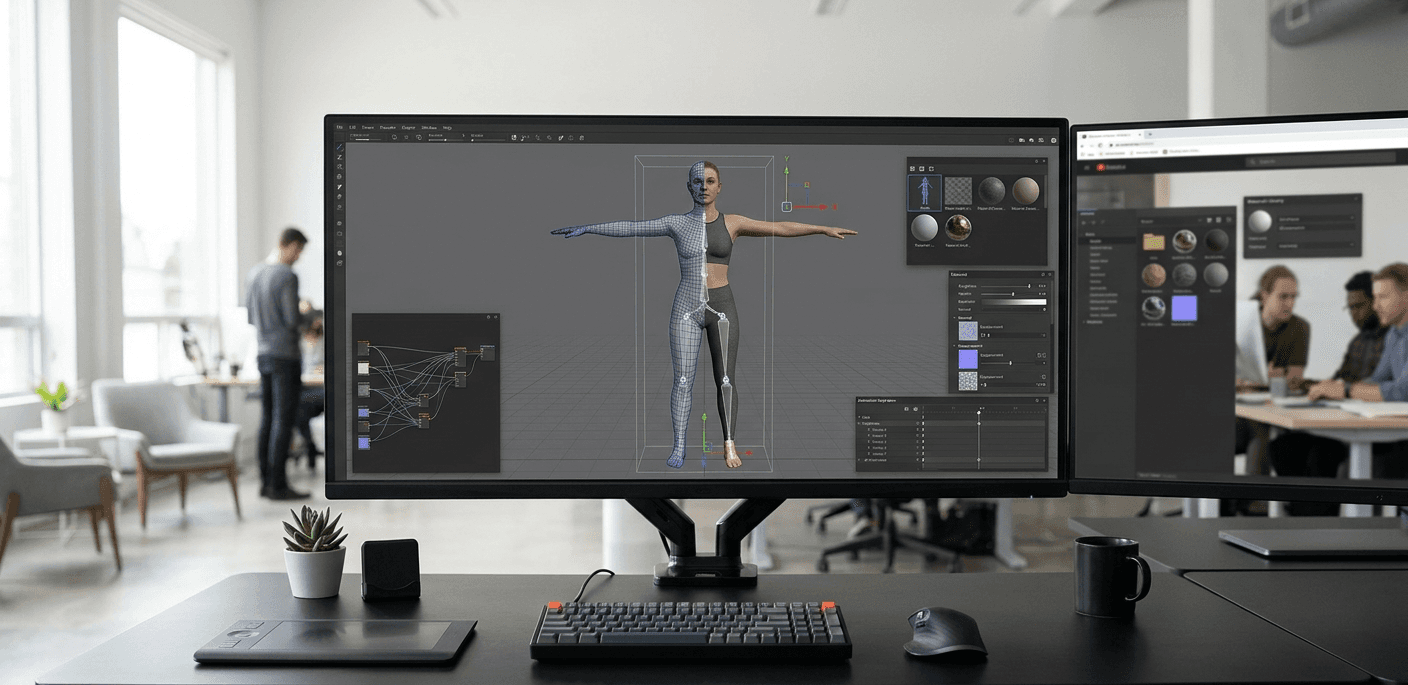
What makes a player truly connect with a game? Often, it’s the ability to see themselves in the character they control. A generic model offers a generic experience, but a personalized AI character creates a powerful sense of immersion and ownership. Building a system that allows for this level of expression is a game-changer. This guide will teach you how to create a custom avatar for Unity that serves as a canvas for player creativity. We’ll go beyond the basics of importing a model and explore advanced techniques like creating facial expressions with blend shapes and building modular systems for clothing and accessories.
Key Takeaways
Prepare your 3D model correctly: A clean export is your best first step. Make sure your model is in the FBX format with a proper skeleton and choose the right rig type in Unity (Humanoid for people, Generic for creatures) to avoid animation issues down the line.
Prioritize performance from the beginning: Don't wait until the end to optimize. Keep your AI character efficient by managing polygon counts with Level of Detail (LOD) groups, compressing textures, and keeping the rig simple to ensure your game runs smoothly for everyone.
Streamline your workflow with an SDK: You don't have to build every system from scratch. Integrating a solution like the Genies Avatar SDK handles the complex backend for customization and identity, letting you focus your time on creating unique gameplay.
What Is a Custom Avatar in Unity?
Think of a Unity avatar as the bridge between your 3D character model and Unity’s animation system. It’s a specialized asset that maps the bones of your model (its digital skeleton) to a standardized structure. This mapping is what allows your AI character to move, express itself, and interact with the game world. Without an avatar, your beautifully designed model is just a static object. With one, it comes to life.
In Unity, avatars are essential for applying animations to your characters in both 2D and 3D games. When you import a model, Unity can automatically create an avatar for it. A "custom" avatar simply refers to one you’ve created for a unique model you designed, rather than one that comes with a pre-made asset. Building a custom avatar gives you complete control over your character’s appearance and movement, ensuring it perfectly fits the vision for your game. It’s the foundation for creating a truly unique player experience, whether you're building a realistic human character or a fantastical creature.
A Look at Unity's Avatar Types
Unity gives you a few options for configuring your avatar, depending on the type of character you’re building. The most common choice is the Humanoid type. This is designed specifically for characters with a human-like bone structure (two arms, two legs, a head). Unity’s animation system, Mecanim, uses the Humanoid rig to seamlessly retarget animations between different characters, saving you a ton of time.
For any character that isn't human-like, you’ll use the Generic type. This is the flexible choice for everything from dragons and aliens to walking robots and animals. You define the bone hierarchy yourself, giving you full control. There’s also a Legacy type, but it’s an older system that’s generally not recommended for new projects.
Why Go Custom with Your Avatars?
While the Unity Asset Store is full of ready-made characters, creating your own custom avatars is how you make your game truly stand out. It’s your chance to establish a unique art style and give players a memorable experience. Customization allows you to define every detail of your AI avatar, from its body type and facial features to its clothing and accessories. This level of control is key to building a strong brand identity and fostering a deeper connection with your players.
Sure, creating your first avatar involves learning new tools and skills, but the payoff is huge. It opens the door to endless creative possibilities and gives players the freedom to express themselves through characters that feel personal and unique.
Your Unity Avatar Creation Checklist
Creating a custom avatar from scratch can feel like a huge undertaking, but it’s really just a series of manageable steps. Think of it as a recipe: if you gather your ingredients and follow the instructions, you’ll end up with something amazing. Before you dive into Unity, you need a plan. This checklist will walk you through the essential prep work, from picking your tools to understanding the core skills you’ll need.
Getting these foundational pieces right will save you a ton of headaches later. A well-prepared 3D model and a properly configured Unity project are the keys to a smooth workflow. This isn't about becoming a master artist overnight; it's about setting up a solid foundation so you can focus on the creative parts. When your environment is set up correctly and your model is ready to go, you can avoid common technical issues that often derail creative projects. Instead of troubleshooting import errors or broken rigs, you can spend your time perfecting your character’s look and feel. Taking the time to choose the right software, set up your project correctly, and identify the skills you need to practice will make the entire process more enjoyable and efficient. Whether you’re an experienced 3D artist or a developer new to character creation, organizing your process is the best way to bring your vision to life. Let’s get your project started on the right foot.
Choosing Your 3D Modeling Software
Your avatar’s journey begins with a 3D model. You have a few paths you can take here. You can download a pre-made model from an asset marketplace, use a dedicated avatar creation tool, or build one from the ground up. If you decide to create your own, you’ll need 3D modeling software. Blender is a fantastic, free, and powerful option that’s become an industry standard for indie developers and professional artists alike. Other popular choices include Maya and ZBrush. The best tool for you depends on your budget, experience level, and what you want to create.
Setting Up Your Unity Environment
Once you have a model, it’s time to get Unity ready. First, make sure you’re using a compatible version of the Unity Editor for your project's needs. From there, you’ll create a new project and import your model file. After you bring your model into the project, you need to tell Unity how to handle its animations. You’ll do this in the Inspector window’s "Rig" tab. This is where you’ll select an Animation Type, like Humanoid or Generic, which is a critical step for getting your AI character to move correctly.
Skills to Brush Up On
Building a custom avatar is a fun, creative process, but it helps to have a few technical skills in your back pocket. You don’t need to be an expert overnight, but a basic understanding of a few key areas will make a world of difference. Focus on learning the fundamentals of 3D modeling, rigging (creating a skeleton for your model), and skinning (attaching the 3D mesh to the skeleton). It’s also a great idea to get familiar with Unity’s animation system, Mecanim, which you’ll use to bring your avatar to life.
How to Prepare a 3D Model for Unity
Before you can bring your AI character to life in a game, you need to get its 3D model ready for the spotlight. Think of this as the prep work an actor does before stepping on set. A little bit of planning here saves you a ton of headaches later. Getting your model’s format, skeleton, and textures in order is the key to a smooth import process and great in-game performance. Let’s walk through the three main steps to prepare your model for its Unity debut.
Prepping Your Model: Specs and Formats
First things first, you need to make sure your 3D model is in a format Unity can understand. The most common and reliable format is FBX (.fbx). It’s the industry standard for a reason, as it packages up everything you need, including the model’s mesh, textures, and animation data. Your model also needs a skeleton, which is the underlying bone structure that allows it to be animated. Without a skeleton, your AI avatar would just be a static statue. When you export your model from your 3D software, make sure you’re choosing the FBX format and that its skeleton is included.
Rigging Your Model for Movement
Once your model is in Unity, you need to tell the engine how to handle its skeleton. This process is called rigging. In the model's Import Settings, find the 'Rig' tab and change the 'Animation Type' to 'Humanoid.' This tells Unity’s animation system, Mecanim, to map your model’s bones to a standardized human structure. After you hit 'Apply,' you can click 'Configure' to check the mapping. If you see a bunch of green, you’re good to go. This means Unity successfully recognized the skeleton and your AI character is ready for animation. It’s a simple but crucial step for making your avatar move realistically.
Optimizing Textures for Unity
An unoptimized avatar can slow down your game, so it’s important to get your textures and model complexity in check. High-resolution textures, a massive number of polygons, and too many materials can hurt performance, especially on less powerful devices. Before importing, consider reducing the file size of your textures and simplifying your model where you can. You don’t need to be an expert to do some basic avatar optimization. Simple adjustments like compressing textures or lowering the polygon count can make a huge difference, ensuring your avatar looks great without causing lag.
How to Import and Configure Your Avatar in Unity
Okay, you’ve designed and modeled a fantastic AI character. Now it’s time to bring it to life in Unity. This stage is all about importing your 3D model and configuring it so the engine understands how it’s built and how it should move. Think of it as translating your model’s blueprint for Unity. Getting this part right is crucial for smooth animation and functionality later on. It might seem a bit technical, but breaking it down into a few key steps makes the process much more manageable. We’ll cover the best way to import your files, how to configure the avatar’s rig, and how to apply the materials and textures that give your character its unique look.
Best Practices for FBX Imports
First things first, you need to get your 3D model file into your Unity project. The most common format for this is FBX, as it packages up the model, its rig (the skeleton), and sometimes even animation data all in one file. Before you even drag it into Unity, it’s a good idea to double-check your file in your modeling software to make sure everything is clean and correctly named. Once you bring your FBX into Unity, the engine needs you to configure the animation setup in the Model Importer options. This is where you tell Unity what kind of skeleton your model has, which is essential for making it move correctly.
A Step-by-Step Configuration Guide
Once your model is in your project, it’s time to configure its rig. For human-like characters, you’ll want to select the 'Humanoid' animation type in the 'Rig' tab of the Inspector and hit 'Apply.' Unity’s Mecanim animation system will then attempt to automatically map your model’s bones to its internal avatar structure. If everything goes smoothly, you’ll see a satisfying green checkmark, and a new Avatar asset will appear in your project. If you see a red 'X', don't panic. It just means Unity couldn't figure out the bone mapping on its own, and you'll need to configure it manually by matching your model's bones to the corresponding slots in the Avatar configuration window.
Setting Up Materials and Textures
With your avatar’s structure configured, the final step is giving it some color and detail. This is where materials and textures come in. You should import your texture files (like PNGs or JPEGs) into your project’s 'Assets' folder right alongside your 3D model. From there, you can create new materials within Unity and assign your textures to them. For example, you’d plug your character’s skin texture into the Albedo or Base Color slot of a material. According to VRChat's helpful avatar creation guide, this process is key to defining your character's appearance. Once your materials are ready, you just drag and drop them onto the corresponding parts of your model in the scene.
Which Unity Avatar Type Should You Choose?
Once you’ve imported your 3D model into Unity, you’ll face an important decision in the Inspector window’s “Rig” tab: selecting an avatar type. This setting tells Unity how to interpret your model’s skeletal structure, or rig, which directly impacts how it can be animated. Your choice here determines which animation system your character will use and how easily you can apply movements to it. Think of it as telling Unity the basic anatomy of your character so it knows how to make it move correctly.
The three options are Humanoid, Generic, and Legacy. Each serves a different purpose, and picking the right one from the start will save you a lot of headaches later. For most new projects, your decision will come down to Humanoid or Generic. Let’s break down what each type is best for so you can make the right call for your project.
Choosing Humanoid for Realistic Characters
If you're creating a character that has a human-like body structure (two arms, two legs, a torso, and a head), the Humanoid type is almost always the right choice. This option lets you tap into Unity’s powerful Mecanim animation system, which is specifically designed for human characters. When you select Humanoid, Unity attempts to automatically map your model's bones to its own internal avatar structure.
This auto-mapping is a huge advantage. It enables animation retargeting, meaning you can apply animations from one Humanoid character to another, even if their proportions are different. You can grab animations from the Unity Asset Store or other sources and get them working on your character with minimal effort. This is perfect for creating realistic player characters or NPCs that need to walk, run, jump, and interact in a believable way.
Using Generic for Everything Else
What if your character isn't human? For everything from a six-legged alien monster to a walking treasure chest or a simple animal, the Generic type is your best bet. This option is for any model that doesn't fit the standard Humanoid bone structure. While it doesn't have the automatic bone mapping or retargeting features of the Humanoid rig, it still uses the modern Mecanim animation system.
The Generic rig gives you the flexibility to animate just about anything you can imagine. You’ll have to set up the rig yourself by defining a root bone, but this gives you complete control over how your unique AI character moves. It’s the ideal choice for creatures, vehicles, or any other rigged model where the Humanoid structure just doesn’t apply.
When to Use Legacy Avatars
You’ll also see a Legacy option, but you should generally avoid using it for new projects. The Legacy animation system is the older, component-based system from previous versions of Unity. It’s less efficient and doesn't offer the advanced features found in Mecanim, like the visual animation controller editor.
So, when would you ever use it? The main reason to use the Legacy system is for backward compatibility. If you’re working on an older project that was built entirely with the Legacy system and you don’t have the time or resources to update all the animations, sticking with Legacy can make things easier. For any new character or project you start, however, choosing either Humanoid or Generic is the modern, recommended approach.
Common Mistakes to Avoid When Creating Avatars
Creating a custom avatar is an exciting process, but a few technical missteps can lead to a lot of headaches down the line. Whether it's wonky animations or a character that just looks off, these issues often trace back to a few common mistakes. Getting ahead of them will save you tons of time and help you create a much more polished final product. Let's walk through some of the most frequent pitfalls and how you can sidestep them.
Avoiding Rigging and Joint Placement Errors
A great-looking model can quickly fall apart with a bad rig. The rig is the invisible skeleton that allows your AI avatar to move, and one of the biggest mistakes is poor joint placement. If a knee joint is too high or an elbow is misplaced, your character’s movements will look unnatural and stiff. It’s also tempting to skip deformation testing once the rig is in place, but this is a critical step. You need to test how the model’s mesh deforms by moving it into various poses. This helps you catch any weird stretching or clipping before you get deep into animating. For a deeper look, it's worth reviewing the fundamentals of 3D character rigging.
Getting Scale and Proportions Right
Scale can make or break the believability of your avatar within its environment. A frequent error is to design and rig the character without considering its final size in the game world, treating it more like a toy than a functional asset. If your avatar is meant to walk through a door, its proportions need to match the scale of that door. Getting this wrong can lead to a character that looks comically large or small, clips through the floor, or interacts awkwardly with objects. Always establish your avatar’s intended scale early on and use a reference model in your scene to keep proportions consistent throughout the creation process.
Fixing Animation Retargeting Issues
Using pre-made animations on a custom model is a huge time-saver, but it often comes with retargeting challenges. You might import an animation and find that your avatar’s joint rotations seem to be off, causing limbs to bend at strange angles. This usually happens when your model’s skeleton doesn’t perfectly align with the skeleton the animation was created for. The key to fixing this is to have a solid grasp of Unity’s humanoid skeleton system. By correctly mapping your model’s bones to Unity’s humanoid avatar configuration in the Inspector, you tell the engine exactly how to translate the animation data to your unique AI character rig, ensuring movements look smooth and correct.
How to Optimize Your Avatars for Better Performance
Creating a beautiful, detailed avatar is one thing, but ensuring it performs well in your game is a whole different challenge. Performance optimization isn't just a final-step cleanup; it's a crucial part of the development process that directly impacts the player experience. A poorly optimized AI avatar can lead to frustrating lag, lower frame rates, and even game crashes, especially on less powerful hardware. No one wants to play a game where the characters themselves are slowing everything down.
Think of optimization as the art of balancing visual quality with technical efficiency. The goal is to make your AI character look amazing without demanding too much from the game engine. This involves making smart decisions about your model’s complexity, the size of its textures, and the intricacy of its animations. An unoptimized avatar can quickly become a performance nightmare, with hundreds of thousands of polygons, dozens of materials, and high-resolution textures that eat up memory. By focusing on key optimization techniques from the start, you can create avatars that not only look great but also contribute to a smooth and enjoyable experience for every player. We’ll walk through the most important areas to keep your avatars lean and efficient.
Managing Polygons and LODs
Every 3D model is built from polygons, which are the tiny flat surfaces that form its shape. While a high polygon count can create stunningly detailed characters, it also puts a heavy load on the graphics card. An avatar with "500k polys, 30 materials and meshes," and tons of effects is a recipe for poor performance. Your first step is to practice good polygon economy by creating a model that is detailed enough to look good up close but isn't unnecessarily complex.
This is where Level of Detail (LOD) groups become your best friend. An LOD system uses multiple versions of your model at varying polygon counts. When the avatar is close to the camera, Unity displays the high-poly version. As it moves further away, the engine automatically swaps to a lower-poly version. This simple trick dramatically reduces the rendering workload without the player ever noticing the difference. Setting up LODs in Unity is a fundamental skill for any character artist or developer looking to build scalable, performant games.
Optimizing Textures and Materials
High-resolution textures are often the biggest culprits behind large file sizes and memory usage. While a 4K texture might look crisp, it’s often overkill for smaller avatar accessories or parts that are rarely seen up close. You can gain significant performance by resizing textures to the smallest possible dimensions without a noticeable loss in quality. Using texture compression formats appropriate for your target platform is another essential step.
Beyond texture size, the number of materials on your avatar matters. Each material typically requires a separate draw call, which is an instruction sent to the graphics card to draw something on the screen. Too many draw calls can create a bottleneck and slow down performance. A great way to reduce draw calls is to use a texture atlas, which combines multiple smaller textures into a single, larger texture sheet. This allows different parts of your avatar to share one material, keeping things efficient.
Working with Animation and Bone Limits
An avatar’s skeleton, or rig, is what allows it to move, but it can also be a source of performance issues. The more bones and joints you have in a rig, the more calculations the CPU has to perform for each frame of animation. If your "rigging is super slow" or your scene is crashing, an overly complex skeleton could be the problem. It’s important to find a balance between creating a rig that allows for expressive movement and keeping the bone count within a reasonable limit for your target platform.
Blend shapes, which are used for facial expressions and other subtle deformations, also add to the performance cost. While they are incredibly powerful for creating lifelike AI characters, an excessive number of blend shapes can strain memory and processing power. Always be mindful of your limits and remove any unused bones or blend shapes from your final model. This cleanup ensures your avatar is as lightweight as possible before it ever makes it into the game.
Level Up Your Avatar with Advanced Techniques
Once you have a functional avatar in Unity, the real fun begins. Adding advanced features is what transforms a static model into a dynamic, expressive AI character that users can connect with. These techniques add layers of personality and realism, making your avatar feel more alive and interactive. Whether you’re building a game or an interactive experience, focusing on facial expressions, natural movement, and customization will set your project apart. Let’s walk through a few powerful methods you can use to bring your AI avatar to the next level.
These aren't just cosmetic upgrades; they are fundamental to creating believable characters. By implementing blend shapes, inverse kinematics, and a modular design, you give users the tools to form a deeper bond with their digital identity, making every interaction more meaningful and memorable.
Creating Facial Expressions with Blend Shapes
Facial expressions are key to conveying emotion, and in Unity, blend shapes are the go-to tool for this. A blend shape, or morph target, is a deformed version of your base mesh stored within the model file. By blending between the base mesh and the blend shape, you can create smooth animations like a smile, a frown, or a surprised gasp. For example, you can have one blend shape for a left-eyebrow-raised expression and another for a wide-open mouth.
While powerful, it’s important to use them efficiently. Each blend shape adds data to your model, so an excessive number can increase file size. You can optimize your models by focusing only on the essential expressions needed for your character’s personality. This approach ensures you get that expressive detail without hurting performance.
Adding Dynamic Movement with IK Systems
To make your avatar’s movements look natural and responsive, you’ll want to use an Inverse Kinematics (IK) system. IK allows you to position an end point of a limb, like a hand or foot, and have the connected joints (like the elbow and shoulder) automatically adjust to realistic positions. This is much more efficient than manually animating every joint in a chain.
IK is essential for creating believable interactions with the game world. For instance, you can use it to make an AI character automatically reach for a nearby object or place its feet correctly on uneven ground. Unity provides built-in tools to help you set up IK systems, allowing your avatar to react dynamically to its environment instead of playing out pre-canned animations that might not fit the scene.
Building a Modular Customization System
Giving users the ability to personalize their avatars is one of the best ways to get them invested in your experience. A modular customization system allows players to mix and match different parts like hairstyles, clothing, and accessories to create a unique look. This is typically done by building your character from separate, swappable pieces rather than as a single, monolithic mesh.
You can design a system where different clothing items are Skinned Mesh Renderers that attach to the base avatar rig. For simpler changes, like eye or hair color, you can just swap out materials on the existing mesh. This approach gives you incredible flexibility and lets users express themselves freely. Planning for a modular design from the start will save you a lot of headaches and open up endless possibilities for customization.
What Tools and SDKs Can Streamline Your Workflow?
Creating custom avatars from the ground up is a rewarding challenge, but you don’t have to build every single component yourself. A smart workflow uses powerful tools and SDKs to handle the heavy lifting, freeing you up to focus on what makes your game unique. Integrating the right tools can save you hundreds of hours of development time, from rigging and optimization to implementing complex customization systems. Think of these resources as your development co-pilots, helping you get your project off the ground faster and with more polished results. Whether you’re a solo developer or part of a large team, leveraging existing solutions is key to working efficiently and bringing your creative vision to life without getting bogged down in the technical weeds.
Speed Up Development with the Genies Avatar SDK
Choosing the right SDK is about more than just technical specs; it’s about finding a platform that supports your creative goals. The Genies Avatar SDK provides everything you need to integrate high-fidelity, game-ready AI avatars directly into your Unity project. Instead of building complex systems for character customization, inventory, and identity from scratch, you can plug in a ready-made solution. This allows players to create and personalize their AI characters, which travel with them across different experiences. By handling the foundational avatar technology, the SDK lets you concentrate on designing compelling gameplay and building the world your players will love to explore.
Helpful Community Tools and Assets
One of the best parts of developing with Unity is its massive and active community. You can find a treasure trove of tools and assets that solve common development problems. For example, instead of manually optimizing every character, you can find community-built scripts that help manage polygon counts and texture sizes to keep performance smooth. Many creators share custom shaders, animation packs, and utility scripts on the Unity Asset Store and GitHub. Tapping into these resources can solve a specific technical hurdle or simply inspire a new feature. Before you spend days building a custom tool, it’s always worth checking to see what the community has already created.
Exploring Third-Party Modeling Tools
While Unity is where your avatar comes to life, the creation process usually starts in a dedicated 3D modeling program. Tools like Blender, Maya, and ZBrush give you precise control over your character’s mesh, textures, and rig. This is where you’ll sculpt the fine details, paint intricate materials, and build the skeleton that allows your avatar to move. Mastering these programs is essential for creating truly unique AI characters. They help you tackle complex tasks, like ensuring the bones on a piece of clothing perfectly match the avatar’s rig for seamless customization. A solid workflow between your modeling software and Unity is the backbone of professional-quality avatar creation.
How to Test and Deploy Your Custom Avatar
You’ve designed, modeled, and rigged your avatar. Now it’s time for the final, crucial steps: testing and deployment. This phase is all about making sure your AI character not only looks great but also performs smoothly within your Unity project. A little bit of testing and optimization here will save you a lot of headaches down the road and ensure a great experience for your users. Let’s walk through how to get your avatar across the finish line.
Testing Performance and Debugging
It’s easy to get carried away adding incredible detail to your avatar, but performance is just as important as appearance. An AI avatar with an extremely high polygon count, dozens of materials, and massive 4K textures can slow down an application and create a laggy, frustrating experience. The goal is to find a healthy balance between visual quality and efficiency.
Start by bringing your avatar into a test scene in Unity and monitor its impact on performance. Are your frame rates dropping? Is it using too much memory? If so, it’s time to debug. Look for the biggest offenders first, which are often uncompressed textures or an overly complex mesh.
Considering Different Platforms
Think about where your avatar will ultimately live. Will it be used in a high-end PC game, a mobile app, or across multiple experiences? Each platform has its own technical limitations, and an avatar optimized for one might not work well on another. This is where your choice of tools becomes really important.
Using a powerful toolset like the Genies Avatar SDK can help you build AI characters with interoperability in mind from the start. A good SDK provides the foundation to create avatars that are both expressive and efficient, making it easier to adapt them for different environments. Always consider your target platform’s constraints during the testing phase to ensure your avatar performs well everywhere it goes.
Your Final Optimization Checklist
Before you deploy your avatar, run through a final optimization checklist to catch any remaining issues. Think of this as a pre-flight check to ensure everything is ready for launch. First, review your model’s skeleton to confirm it’s clean and properly set up for movement. Next, check that you’re using a Unity-compatible format like .fbx for a smooth import process.
Then, focus on file size. Reduce the number of BlendShapes to only what’s necessary for your desired facial expressions, as each one adds to the data load. Finally, resize your textures. While high-resolution textures look great up close, smaller ones often work just as well in-game and significantly reduce memory usage. Keeping your model simple is the best way to avoid performance problems.
Related Articles
Frequently Asked Questions
What’s the most important choice I’ll make when setting up my avatar in Unity? The most critical decision you'll make right after importing your model is choosing the Animation Type in the "Rig" tab. Selecting "Humanoid" is best for any character with a human-like skeleton because it lets you use Unity’s powerful animation retargeting system. This means you can easily apply animations from other sources to your character. For anything else, like a creature or a robot, you’ll want to choose "Generic" for more flexible, custom animation control.
My avatar’s animations look broken or unnatural. What are the first things I should check? When animations look off, the issue often traces back to the initial setup. First, double-check your avatar’s rig configuration in Unity. If you're using a Humanoid rig, make sure all the bones are correctly mapped; a single misplaced bone can cause limbs to bend in strange ways. Another common problem is scale. If your character was modeled at a different scale than your Unity project, it can lead to awkward movements and interactions with the environment.
Why is my game running so slowly after I added my custom avatar? A new avatar can definitely slow things down if it isn't optimized. The three most common performance killers are an excessively high polygon count, large uncompressed textures, and too many separate materials. You can address this by creating Level of Detail (LOD) models that swap in simpler versions of your character at a distance. It also helps to resize your textures to the smallest acceptable resolution and combine materials using a texture atlas to reduce draw calls.
Do I have to be a 3D artist to create a custom character? Not at all. While modeling a character from scratch gives you the most creative control, it's not the only path. You can start with a pre-made model from the Unity Asset Store or another marketplace and customize it from there. The most important skills for a developer are learning how to properly prepare, import, and configure a model inside Unity, regardless of where the model came from.
How can an SDK help if I already know how to build avatars? Even if you’re comfortable with the entire creation process, an SDK can save you a massive amount of time on the systems that surround the avatar. Instead of building your own complex UI for customization, an inventory system for clothing, or a backend to manage player identity, a tool like the Genies Avatar SDK provides that foundation for you. This lets you focus your energy on designing your game’s core mechanics rather than reinventing the wheel.
Mar 23, 2026
What makes a player truly connect with a game? Often, it’s the ability to see themselves in the character they control. A generic model offers a generic experience, but a personalized AI character creates a powerful sense of immersion and ownership. Building a system that allows for this level of expression is a game-changer. This guide will teach you how to create a custom avatar for Unity that serves as a canvas for player creativity. We’ll go beyond the basics of importing a model and explore advanced techniques like creating facial expressions with blend shapes and building modular systems for clothing and accessories.
Key Takeaways
Prepare your 3D model correctly: A clean export is your best first step. Make sure your model is in the FBX format with a proper skeleton and choose the right rig type in Unity (Humanoid for people, Generic for creatures) to avoid animation issues down the line.
Prioritize performance from the beginning: Don't wait until the end to optimize. Keep your AI character efficient by managing polygon counts with Level of Detail (LOD) groups, compressing textures, and keeping the rig simple to ensure your game runs smoothly for everyone.
Streamline your workflow with an SDK: You don't have to build every system from scratch. Integrating a solution like the Genies Avatar SDK handles the complex backend for customization and identity, letting you focus your time on creating unique gameplay.
What Is a Custom Avatar in Unity?
Think of a Unity avatar as the bridge between your 3D character model and Unity’s animation system. It’s a specialized asset that maps the bones of your model (its digital skeleton) to a standardized structure. This mapping is what allows your AI character to move, express itself, and interact with the game world. Without an avatar, your beautifully designed model is just a static object. With one, it comes to life.
In Unity, avatars are essential for applying animations to your characters in both 2D and 3D games. When you import a model, Unity can automatically create an avatar for it. A "custom" avatar simply refers to one you’ve created for a unique model you designed, rather than one that comes with a pre-made asset. Building a custom avatar gives you complete control over your character’s appearance and movement, ensuring it perfectly fits the vision for your game. It’s the foundation for creating a truly unique player experience, whether you're building a realistic human character or a fantastical creature.
A Look at Unity's Avatar Types
Unity gives you a few options for configuring your avatar, depending on the type of character you’re building. The most common choice is the Humanoid type. This is designed specifically for characters with a human-like bone structure (two arms, two legs, a head). Unity’s animation system, Mecanim, uses the Humanoid rig to seamlessly retarget animations between different characters, saving you a ton of time.
For any character that isn't human-like, you’ll use the Generic type. This is the flexible choice for everything from dragons and aliens to walking robots and animals. You define the bone hierarchy yourself, giving you full control. There’s also a Legacy type, but it’s an older system that’s generally not recommended for new projects.
Why Go Custom with Your Avatars?
While the Unity Asset Store is full of ready-made characters, creating your own custom avatars is how you make your game truly stand out. It’s your chance to establish a unique art style and give players a memorable experience. Customization allows you to define every detail of your AI avatar, from its body type and facial features to its clothing and accessories. This level of control is key to building a strong brand identity and fostering a deeper connection with your players.
Sure, creating your first avatar involves learning new tools and skills, but the payoff is huge. It opens the door to endless creative possibilities and gives players the freedom to express themselves through characters that feel personal and unique.
Your Unity Avatar Creation Checklist
Creating a custom avatar from scratch can feel like a huge undertaking, but it’s really just a series of manageable steps. Think of it as a recipe: if you gather your ingredients and follow the instructions, you’ll end up with something amazing. Before you dive into Unity, you need a plan. This checklist will walk you through the essential prep work, from picking your tools to understanding the core skills you’ll need.
Getting these foundational pieces right will save you a ton of headaches later. A well-prepared 3D model and a properly configured Unity project are the keys to a smooth workflow. This isn't about becoming a master artist overnight; it's about setting up a solid foundation so you can focus on the creative parts. When your environment is set up correctly and your model is ready to go, you can avoid common technical issues that often derail creative projects. Instead of troubleshooting import errors or broken rigs, you can spend your time perfecting your character’s look and feel. Taking the time to choose the right software, set up your project correctly, and identify the skills you need to practice will make the entire process more enjoyable and efficient. Whether you’re an experienced 3D artist or a developer new to character creation, organizing your process is the best way to bring your vision to life. Let’s get your project started on the right foot.
Choosing Your 3D Modeling Software
Your avatar’s journey begins with a 3D model. You have a few paths you can take here. You can download a pre-made model from an asset marketplace, use a dedicated avatar creation tool, or build one from the ground up. If you decide to create your own, you’ll need 3D modeling software. Blender is a fantastic, free, and powerful option that’s become an industry standard for indie developers and professional artists alike. Other popular choices include Maya and ZBrush. The best tool for you depends on your budget, experience level, and what you want to create.
Setting Up Your Unity Environment
Once you have a model, it’s time to get Unity ready. First, make sure you’re using a compatible version of the Unity Editor for your project's needs. From there, you’ll create a new project and import your model file. After you bring your model into the project, you need to tell Unity how to handle its animations. You’ll do this in the Inspector window’s "Rig" tab. This is where you’ll select an Animation Type, like Humanoid or Generic, which is a critical step for getting your AI character to move correctly.
Skills to Brush Up On
Building a custom avatar is a fun, creative process, but it helps to have a few technical skills in your back pocket. You don’t need to be an expert overnight, but a basic understanding of a few key areas will make a world of difference. Focus on learning the fundamentals of 3D modeling, rigging (creating a skeleton for your model), and skinning (attaching the 3D mesh to the skeleton). It’s also a great idea to get familiar with Unity’s animation system, Mecanim, which you’ll use to bring your avatar to life.
How to Prepare a 3D Model for Unity
Before you can bring your AI character to life in a game, you need to get its 3D model ready for the spotlight. Think of this as the prep work an actor does before stepping on set. A little bit of planning here saves you a ton of headaches later. Getting your model’s format, skeleton, and textures in order is the key to a smooth import process and great in-game performance. Let’s walk through the three main steps to prepare your model for its Unity debut.
Prepping Your Model: Specs and Formats
First things first, you need to make sure your 3D model is in a format Unity can understand. The most common and reliable format is FBX (.fbx). It’s the industry standard for a reason, as it packages up everything you need, including the model’s mesh, textures, and animation data. Your model also needs a skeleton, which is the underlying bone structure that allows it to be animated. Without a skeleton, your AI avatar would just be a static statue. When you export your model from your 3D software, make sure you’re choosing the FBX format and that its skeleton is included.
Rigging Your Model for Movement
Once your model is in Unity, you need to tell the engine how to handle its skeleton. This process is called rigging. In the model's Import Settings, find the 'Rig' tab and change the 'Animation Type' to 'Humanoid.' This tells Unity’s animation system, Mecanim, to map your model’s bones to a standardized human structure. After you hit 'Apply,' you can click 'Configure' to check the mapping. If you see a bunch of green, you’re good to go. This means Unity successfully recognized the skeleton and your AI character is ready for animation. It’s a simple but crucial step for making your avatar move realistically.
Optimizing Textures for Unity
An unoptimized avatar can slow down your game, so it’s important to get your textures and model complexity in check. High-resolution textures, a massive number of polygons, and too many materials can hurt performance, especially on less powerful devices. Before importing, consider reducing the file size of your textures and simplifying your model where you can. You don’t need to be an expert to do some basic avatar optimization. Simple adjustments like compressing textures or lowering the polygon count can make a huge difference, ensuring your avatar looks great without causing lag.
How to Import and Configure Your Avatar in Unity
Okay, you’ve designed and modeled a fantastic AI character. Now it’s time to bring it to life in Unity. This stage is all about importing your 3D model and configuring it so the engine understands how it’s built and how it should move. Think of it as translating your model’s blueprint for Unity. Getting this part right is crucial for smooth animation and functionality later on. It might seem a bit technical, but breaking it down into a few key steps makes the process much more manageable. We’ll cover the best way to import your files, how to configure the avatar’s rig, and how to apply the materials and textures that give your character its unique look.
Best Practices for FBX Imports
First things first, you need to get your 3D model file into your Unity project. The most common format for this is FBX, as it packages up the model, its rig (the skeleton), and sometimes even animation data all in one file. Before you even drag it into Unity, it’s a good idea to double-check your file in your modeling software to make sure everything is clean and correctly named. Once you bring your FBX into Unity, the engine needs you to configure the animation setup in the Model Importer options. This is where you tell Unity what kind of skeleton your model has, which is essential for making it move correctly.
A Step-by-Step Configuration Guide
Once your model is in your project, it’s time to configure its rig. For human-like characters, you’ll want to select the 'Humanoid' animation type in the 'Rig' tab of the Inspector and hit 'Apply.' Unity’s Mecanim animation system will then attempt to automatically map your model’s bones to its internal avatar structure. If everything goes smoothly, you’ll see a satisfying green checkmark, and a new Avatar asset will appear in your project. If you see a red 'X', don't panic. It just means Unity couldn't figure out the bone mapping on its own, and you'll need to configure it manually by matching your model's bones to the corresponding slots in the Avatar configuration window.
Setting Up Materials and Textures
With your avatar’s structure configured, the final step is giving it some color and detail. This is where materials and textures come in. You should import your texture files (like PNGs or JPEGs) into your project’s 'Assets' folder right alongside your 3D model. From there, you can create new materials within Unity and assign your textures to them. For example, you’d plug your character’s skin texture into the Albedo or Base Color slot of a material. According to VRChat's helpful avatar creation guide, this process is key to defining your character's appearance. Once your materials are ready, you just drag and drop them onto the corresponding parts of your model in the scene.
Which Unity Avatar Type Should You Choose?
Once you’ve imported your 3D model into Unity, you’ll face an important decision in the Inspector window’s “Rig” tab: selecting an avatar type. This setting tells Unity how to interpret your model’s skeletal structure, or rig, which directly impacts how it can be animated. Your choice here determines which animation system your character will use and how easily you can apply movements to it. Think of it as telling Unity the basic anatomy of your character so it knows how to make it move correctly.
The three options are Humanoid, Generic, and Legacy. Each serves a different purpose, and picking the right one from the start will save you a lot of headaches later. For most new projects, your decision will come down to Humanoid or Generic. Let’s break down what each type is best for so you can make the right call for your project.
Choosing Humanoid for Realistic Characters
If you're creating a character that has a human-like body structure (two arms, two legs, a torso, and a head), the Humanoid type is almost always the right choice. This option lets you tap into Unity’s powerful Mecanim animation system, which is specifically designed for human characters. When you select Humanoid, Unity attempts to automatically map your model's bones to its own internal avatar structure.
This auto-mapping is a huge advantage. It enables animation retargeting, meaning you can apply animations from one Humanoid character to another, even if their proportions are different. You can grab animations from the Unity Asset Store or other sources and get them working on your character with minimal effort. This is perfect for creating realistic player characters or NPCs that need to walk, run, jump, and interact in a believable way.
Using Generic for Everything Else
What if your character isn't human? For everything from a six-legged alien monster to a walking treasure chest or a simple animal, the Generic type is your best bet. This option is for any model that doesn't fit the standard Humanoid bone structure. While it doesn't have the automatic bone mapping or retargeting features of the Humanoid rig, it still uses the modern Mecanim animation system.
The Generic rig gives you the flexibility to animate just about anything you can imagine. You’ll have to set up the rig yourself by defining a root bone, but this gives you complete control over how your unique AI character moves. It’s the ideal choice for creatures, vehicles, or any other rigged model where the Humanoid structure just doesn’t apply.
When to Use Legacy Avatars
You’ll also see a Legacy option, but you should generally avoid using it for new projects. The Legacy animation system is the older, component-based system from previous versions of Unity. It’s less efficient and doesn't offer the advanced features found in Mecanim, like the visual animation controller editor.
So, when would you ever use it? The main reason to use the Legacy system is for backward compatibility. If you’re working on an older project that was built entirely with the Legacy system and you don’t have the time or resources to update all the animations, sticking with Legacy can make things easier. For any new character or project you start, however, choosing either Humanoid or Generic is the modern, recommended approach.
Common Mistakes to Avoid When Creating Avatars
Creating a custom avatar is an exciting process, but a few technical missteps can lead to a lot of headaches down the line. Whether it's wonky animations or a character that just looks off, these issues often trace back to a few common mistakes. Getting ahead of them will save you tons of time and help you create a much more polished final product. Let's walk through some of the most frequent pitfalls and how you can sidestep them.
Avoiding Rigging and Joint Placement Errors
A great-looking model can quickly fall apart with a bad rig. The rig is the invisible skeleton that allows your AI avatar to move, and one of the biggest mistakes is poor joint placement. If a knee joint is too high or an elbow is misplaced, your character’s movements will look unnatural and stiff. It’s also tempting to skip deformation testing once the rig is in place, but this is a critical step. You need to test how the model’s mesh deforms by moving it into various poses. This helps you catch any weird stretching or clipping before you get deep into animating. For a deeper look, it's worth reviewing the fundamentals of 3D character rigging.
Getting Scale and Proportions Right
Scale can make or break the believability of your avatar within its environment. A frequent error is to design and rig the character without considering its final size in the game world, treating it more like a toy than a functional asset. If your avatar is meant to walk through a door, its proportions need to match the scale of that door. Getting this wrong can lead to a character that looks comically large or small, clips through the floor, or interacts awkwardly with objects. Always establish your avatar’s intended scale early on and use a reference model in your scene to keep proportions consistent throughout the creation process.
Fixing Animation Retargeting Issues
Using pre-made animations on a custom model is a huge time-saver, but it often comes with retargeting challenges. You might import an animation and find that your avatar’s joint rotations seem to be off, causing limbs to bend at strange angles. This usually happens when your model’s skeleton doesn’t perfectly align with the skeleton the animation was created for. The key to fixing this is to have a solid grasp of Unity’s humanoid skeleton system. By correctly mapping your model’s bones to Unity’s humanoid avatar configuration in the Inspector, you tell the engine exactly how to translate the animation data to your unique AI character rig, ensuring movements look smooth and correct.
How to Optimize Your Avatars for Better Performance
Creating a beautiful, detailed avatar is one thing, but ensuring it performs well in your game is a whole different challenge. Performance optimization isn't just a final-step cleanup; it's a crucial part of the development process that directly impacts the player experience. A poorly optimized AI avatar can lead to frustrating lag, lower frame rates, and even game crashes, especially on less powerful hardware. No one wants to play a game where the characters themselves are slowing everything down.
Think of optimization as the art of balancing visual quality with technical efficiency. The goal is to make your AI character look amazing without demanding too much from the game engine. This involves making smart decisions about your model’s complexity, the size of its textures, and the intricacy of its animations. An unoptimized avatar can quickly become a performance nightmare, with hundreds of thousands of polygons, dozens of materials, and high-resolution textures that eat up memory. By focusing on key optimization techniques from the start, you can create avatars that not only look great but also contribute to a smooth and enjoyable experience for every player. We’ll walk through the most important areas to keep your avatars lean and efficient.
Managing Polygons and LODs
Every 3D model is built from polygons, which are the tiny flat surfaces that form its shape. While a high polygon count can create stunningly detailed characters, it also puts a heavy load on the graphics card. An avatar with "500k polys, 30 materials and meshes," and tons of effects is a recipe for poor performance. Your first step is to practice good polygon economy by creating a model that is detailed enough to look good up close but isn't unnecessarily complex.
This is where Level of Detail (LOD) groups become your best friend. An LOD system uses multiple versions of your model at varying polygon counts. When the avatar is close to the camera, Unity displays the high-poly version. As it moves further away, the engine automatically swaps to a lower-poly version. This simple trick dramatically reduces the rendering workload without the player ever noticing the difference. Setting up LODs in Unity is a fundamental skill for any character artist or developer looking to build scalable, performant games.
Optimizing Textures and Materials
High-resolution textures are often the biggest culprits behind large file sizes and memory usage. While a 4K texture might look crisp, it’s often overkill for smaller avatar accessories or parts that are rarely seen up close. You can gain significant performance by resizing textures to the smallest possible dimensions without a noticeable loss in quality. Using texture compression formats appropriate for your target platform is another essential step.
Beyond texture size, the number of materials on your avatar matters. Each material typically requires a separate draw call, which is an instruction sent to the graphics card to draw something on the screen. Too many draw calls can create a bottleneck and slow down performance. A great way to reduce draw calls is to use a texture atlas, which combines multiple smaller textures into a single, larger texture sheet. This allows different parts of your avatar to share one material, keeping things efficient.
Working with Animation and Bone Limits
An avatar’s skeleton, or rig, is what allows it to move, but it can also be a source of performance issues. The more bones and joints you have in a rig, the more calculations the CPU has to perform for each frame of animation. If your "rigging is super slow" or your scene is crashing, an overly complex skeleton could be the problem. It’s important to find a balance between creating a rig that allows for expressive movement and keeping the bone count within a reasonable limit for your target platform.
Blend shapes, which are used for facial expressions and other subtle deformations, also add to the performance cost. While they are incredibly powerful for creating lifelike AI characters, an excessive number of blend shapes can strain memory and processing power. Always be mindful of your limits and remove any unused bones or blend shapes from your final model. This cleanup ensures your avatar is as lightweight as possible before it ever makes it into the game.
Level Up Your Avatar with Advanced Techniques
Once you have a functional avatar in Unity, the real fun begins. Adding advanced features is what transforms a static model into a dynamic, expressive AI character that users can connect with. These techniques add layers of personality and realism, making your avatar feel more alive and interactive. Whether you’re building a game or an interactive experience, focusing on facial expressions, natural movement, and customization will set your project apart. Let’s walk through a few powerful methods you can use to bring your AI avatar to the next level.
These aren't just cosmetic upgrades; they are fundamental to creating believable characters. By implementing blend shapes, inverse kinematics, and a modular design, you give users the tools to form a deeper bond with their digital identity, making every interaction more meaningful and memorable.
Creating Facial Expressions with Blend Shapes
Facial expressions are key to conveying emotion, and in Unity, blend shapes are the go-to tool for this. A blend shape, or morph target, is a deformed version of your base mesh stored within the model file. By blending between the base mesh and the blend shape, you can create smooth animations like a smile, a frown, or a surprised gasp. For example, you can have one blend shape for a left-eyebrow-raised expression and another for a wide-open mouth.
While powerful, it’s important to use them efficiently. Each blend shape adds data to your model, so an excessive number can increase file size. You can optimize your models by focusing only on the essential expressions needed for your character’s personality. This approach ensures you get that expressive detail without hurting performance.
Adding Dynamic Movement with IK Systems
To make your avatar’s movements look natural and responsive, you’ll want to use an Inverse Kinematics (IK) system. IK allows you to position an end point of a limb, like a hand or foot, and have the connected joints (like the elbow and shoulder) automatically adjust to realistic positions. This is much more efficient than manually animating every joint in a chain.
IK is essential for creating believable interactions with the game world. For instance, you can use it to make an AI character automatically reach for a nearby object or place its feet correctly on uneven ground. Unity provides built-in tools to help you set up IK systems, allowing your avatar to react dynamically to its environment instead of playing out pre-canned animations that might not fit the scene.
Building a Modular Customization System
Giving users the ability to personalize their avatars is one of the best ways to get them invested in your experience. A modular customization system allows players to mix and match different parts like hairstyles, clothing, and accessories to create a unique look. This is typically done by building your character from separate, swappable pieces rather than as a single, monolithic mesh.
You can design a system where different clothing items are Skinned Mesh Renderers that attach to the base avatar rig. For simpler changes, like eye or hair color, you can just swap out materials on the existing mesh. This approach gives you incredible flexibility and lets users express themselves freely. Planning for a modular design from the start will save you a lot of headaches and open up endless possibilities for customization.
What Tools and SDKs Can Streamline Your Workflow?
Creating custom avatars from the ground up is a rewarding challenge, but you don’t have to build every single component yourself. A smart workflow uses powerful tools and SDKs to handle the heavy lifting, freeing you up to focus on what makes your game unique. Integrating the right tools can save you hundreds of hours of development time, from rigging and optimization to implementing complex customization systems. Think of these resources as your development co-pilots, helping you get your project off the ground faster and with more polished results. Whether you’re a solo developer or part of a large team, leveraging existing solutions is key to working efficiently and bringing your creative vision to life without getting bogged down in the technical weeds.
Speed Up Development with the Genies Avatar SDK
Choosing the right SDK is about more than just technical specs; it’s about finding a platform that supports your creative goals. The Genies Avatar SDK provides everything you need to integrate high-fidelity, game-ready AI avatars directly into your Unity project. Instead of building complex systems for character customization, inventory, and identity from scratch, you can plug in a ready-made solution. This allows players to create and personalize their AI characters, which travel with them across different experiences. By handling the foundational avatar technology, the SDK lets you concentrate on designing compelling gameplay and building the world your players will love to explore.
Helpful Community Tools and Assets
One of the best parts of developing with Unity is its massive and active community. You can find a treasure trove of tools and assets that solve common development problems. For example, instead of manually optimizing every character, you can find community-built scripts that help manage polygon counts and texture sizes to keep performance smooth. Many creators share custom shaders, animation packs, and utility scripts on the Unity Asset Store and GitHub. Tapping into these resources can solve a specific technical hurdle or simply inspire a new feature. Before you spend days building a custom tool, it’s always worth checking to see what the community has already created.
Exploring Third-Party Modeling Tools
While Unity is where your avatar comes to life, the creation process usually starts in a dedicated 3D modeling program. Tools like Blender, Maya, and ZBrush give you precise control over your character’s mesh, textures, and rig. This is where you’ll sculpt the fine details, paint intricate materials, and build the skeleton that allows your avatar to move. Mastering these programs is essential for creating truly unique AI characters. They help you tackle complex tasks, like ensuring the bones on a piece of clothing perfectly match the avatar’s rig for seamless customization. A solid workflow between your modeling software and Unity is the backbone of professional-quality avatar creation.
How to Test and Deploy Your Custom Avatar
You’ve designed, modeled, and rigged your avatar. Now it’s time for the final, crucial steps: testing and deployment. This phase is all about making sure your AI character not only looks great but also performs smoothly within your Unity project. A little bit of testing and optimization here will save you a lot of headaches down the road and ensure a great experience for your users. Let’s walk through how to get your avatar across the finish line.
Testing Performance and Debugging
It’s easy to get carried away adding incredible detail to your avatar, but performance is just as important as appearance. An AI avatar with an extremely high polygon count, dozens of materials, and massive 4K textures can slow down an application and create a laggy, frustrating experience. The goal is to find a healthy balance between visual quality and efficiency.
Start by bringing your avatar into a test scene in Unity and monitor its impact on performance. Are your frame rates dropping? Is it using too much memory? If so, it’s time to debug. Look for the biggest offenders first, which are often uncompressed textures or an overly complex mesh.
Considering Different Platforms
Think about where your avatar will ultimately live. Will it be used in a high-end PC game, a mobile app, or across multiple experiences? Each platform has its own technical limitations, and an avatar optimized for one might not work well on another. This is where your choice of tools becomes really important.
Using a powerful toolset like the Genies Avatar SDK can help you build AI characters with interoperability in mind from the start. A good SDK provides the foundation to create avatars that are both expressive and efficient, making it easier to adapt them for different environments. Always consider your target platform’s constraints during the testing phase to ensure your avatar performs well everywhere it goes.
Your Final Optimization Checklist
Before you deploy your avatar, run through a final optimization checklist to catch any remaining issues. Think of this as a pre-flight check to ensure everything is ready for launch. First, review your model’s skeleton to confirm it’s clean and properly set up for movement. Next, check that you’re using a Unity-compatible format like .fbx for a smooth import process.
Then, focus on file size. Reduce the number of BlendShapes to only what’s necessary for your desired facial expressions, as each one adds to the data load. Finally, resize your textures. While high-resolution textures look great up close, smaller ones often work just as well in-game and significantly reduce memory usage. Keeping your model simple is the best way to avoid performance problems.
Related Articles
Frequently Asked Questions
What’s the most important choice I’ll make when setting up my avatar in Unity? The most critical decision you'll make right after importing your model is choosing the Animation Type in the "Rig" tab. Selecting "Humanoid" is best for any character with a human-like skeleton because it lets you use Unity’s powerful animation retargeting system. This means you can easily apply animations from other sources to your character. For anything else, like a creature or a robot, you’ll want to choose "Generic" for more flexible, custom animation control.
My avatar’s animations look broken or unnatural. What are the first things I should check? When animations look off, the issue often traces back to the initial setup. First, double-check your avatar’s rig configuration in Unity. If you're using a Humanoid rig, make sure all the bones are correctly mapped; a single misplaced bone can cause limbs to bend in strange ways. Another common problem is scale. If your character was modeled at a different scale than your Unity project, it can lead to awkward movements and interactions with the environment.
Why is my game running so slowly after I added my custom avatar? A new avatar can definitely slow things down if it isn't optimized. The three most common performance killers are an excessively high polygon count, large uncompressed textures, and too many separate materials. You can address this by creating Level of Detail (LOD) models that swap in simpler versions of your character at a distance. It also helps to resize your textures to the smallest acceptable resolution and combine materials using a texture atlas to reduce draw calls.
Do I have to be a 3D artist to create a custom character? Not at all. While modeling a character from scratch gives you the most creative control, it's not the only path. You can start with a pre-made model from the Unity Asset Store or another marketplace and customize it from there. The most important skills for a developer are learning how to properly prepare, import, and configure a model inside Unity, regardless of where the model came from.
How can an SDK help if I already know how to build avatars? Even if you’re comfortable with the entire creation process, an SDK can save you a massive amount of time on the systems that surround the avatar. Instead of building your own complex UI for customization, an inventory system for clothing, or a backend to manage player identity, a tool like the Genies Avatar SDK provides that foundation for you. This lets you focus your energy on designing your game’s core mechanics rather than reinventing the wheel.