
Genies Avatar SDK Unity Integration: A Step-by-Step Developer Guide
Adding interactive AI characters to your Unity project no longer requires months of custom 3D modeling work. The Genies Avatar SDK provides a ready-made system that handles mesh building, rigging, animation blending, and cross-game inventory out of the box.
Genies Avatar SDK Unity integration lets developers add high-quality, customizable 3D AI avatars to any Unity project. By downloading the free SDK from the Unity Asset Store, studios get a complete system for loading player avatars, managing cross-game items, and building NPCs. This guide covers everything from Unity version requirements and installation to project registration, C# avatar loading code, and platform-specific build configuration for Windows, Android, and VR.
Download the Genies Avatar SDK free from the Unity Asset Store now →
Setting up a robust character system is the first step to building great games or social apps. You need the right project settings before importing assets, starting with the prerequisites.
Genies Avatar SDK Unity Integration: What Are the Prerequisites for the Genies Avatar SDK in Unity?
Before starting your integration, check that your development environment meets the SDK requirements. Meeting these prerequisites first helps you avoid common build errors later. Here is what you need:
Unity 2021.3.34 or higher (LTS recommended)
For VR projects: Unity 2022.3.62f2 or later
Windows builds: IL2CPP scripting backend, .NET Framework API compatibility
Android builds: API Level 31+ (Android 12.0), ARM64 architecture
Vulkan graphics API for both Windows and Android
A Genies account for API keys and project registration
Unity Version and Build Support
The SDK version 1.3.1 requires Unity 2021.3.34 as the minimum for standard projects. For VR targeted at Meta Quest 3, you need Unity 2022.3.62f2 or later to support Meta XR SDK dependencies. Using these specific versions ensures the Bootstrap Wizard auto-fix tool works correctly and that the SDK's universal skeleton system renders without issues.
For Windows desktop builds, configure your Player settings with the IL2CPP scripting backend, set API compatibility to .NET Framework, and select Vulkan as the only graphics API. The IL2CPP backend converts your C# code to C++, giving the performance needed for real-time avatar mesh rendering.
Mobile and Android Requirements
Android builds require API Level 31 (Android 12.0) and ARM64 architecture. Like Windows targets, you must use Vulkan for graphics rendering. The Bootstrap Wizard can scan your project and auto-fix these settings with one click, saving you from hunting through Player menus. Mac standalone builds are not currently supported (planned for a future release), so focus on Windows and Android for now.
SDK Version and Asset Prep
Current SDK version is 1.3.1, which includes the latest API methods for loading global and local avatars. You can check and update your version in the Unity Package Manager. Keeping the SDK up to date ensures compatibility with the Bootstrap Wizard and the newest project registration flow. For more background, read our Avatar SDK 101 guide that covers the fundamentals.
Downloading and Installing the SDK
Installing the Genies Avatar SDK is a straightforward process that starts in the Unity Asset Store. The SDK is free and listed under the Game Toolkits category. It works as a Unity Verified Solution, meaning it has passed compatibility testing with the engine.
Follow these steps to get the SDK into your project:
Search for "Genies Avatar SDK" on the Unity Asset Store while signed into your Unity ID.
Click Add to Assets to link the package to your developer account.
Open your Unity project and go to Window > Package Manager.
Change the package filter to "My Assets" using the dropdown menu.
Locate the Genies Avatar SDK in the list and click Download.
Once the download finishes, click Import to bring the files into your project.
Follow the import prompt, ensuring all items are checked before finishing.
After importing, the SDK files appear in your Assets directory under the Genies folder. For a deeper walkthrough of the store listing and import process, check out our step-by-step download guide on the Genies blog.
Using the Bootstrap Wizard
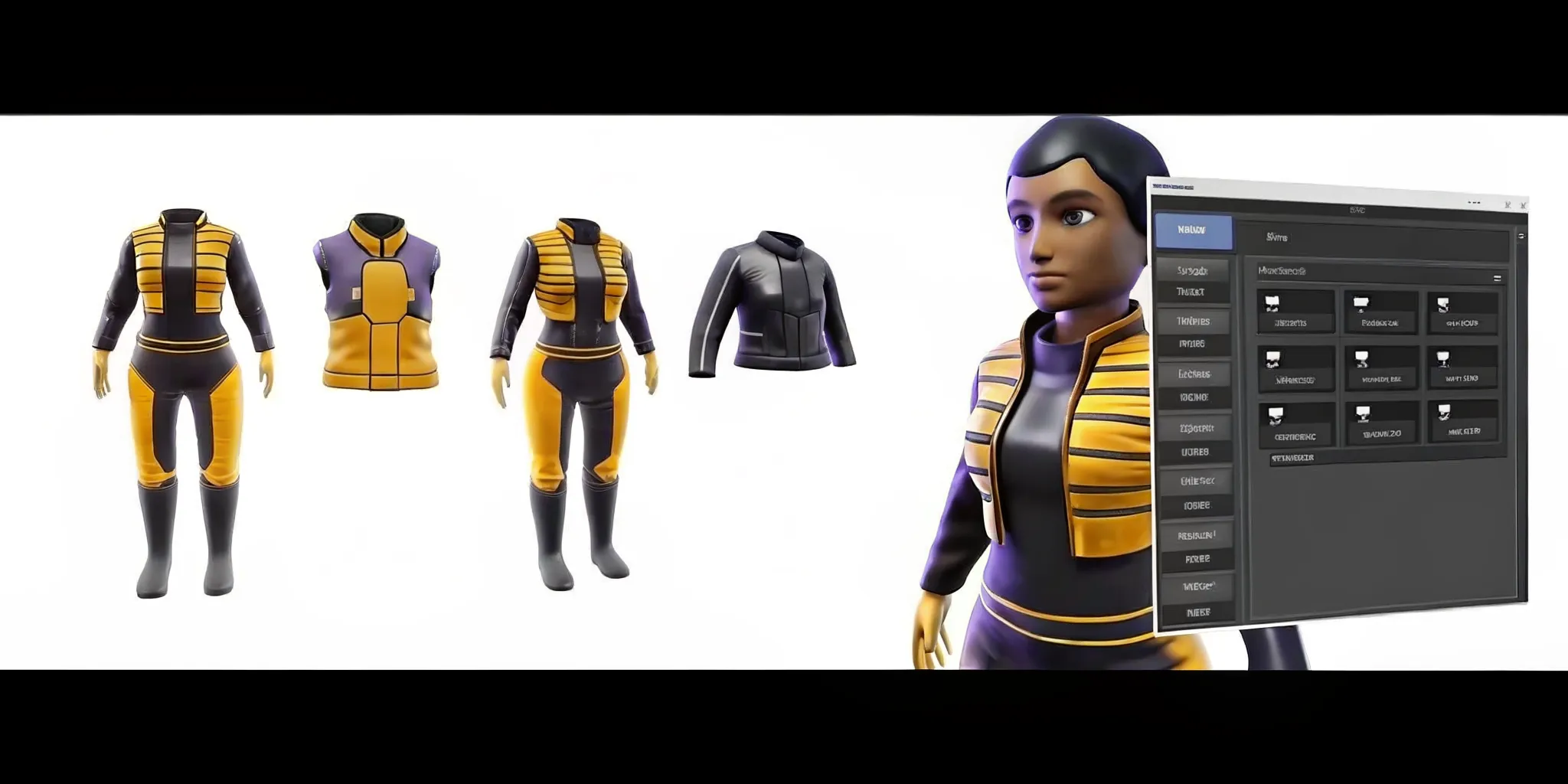
The SDK includes a Bootstrap Wizard tool that simplifies platform configuration. It pops up after import and scans your Player settings for compatibility with the SDK. It checks for IL2CPP, Vulkan, Android API level, and ARM64 architecture, then offers one-click fixes for any mismatches. This auto-configuration ensures your project is ready without manual Player menu hunting. The wizard also configures layer names and physics settings that the SDK needs to render avatars correctly.
Registering Your Project with Genies
After installation, you must link your Unity project to the Genies cloud to authenticate API calls and store user avatar data. This step enables your game to load global avatars and save player inventory across sessions. Without registration, the SDK cannot verify user identities, save avatar definitions, or load cross-game items from the Genies ecosystem.
Create Your Account and Get API Keys
Start by creating a Genies account and visiting the developer portal. The same account powers your Unity projects and gives you access to the Genies dashboard for managing apps, viewing analytics, and tracking user engagement. Create a new project entry in the portal to generate a Project ID and API Key pair. These keys act as credentials for your Unity project to communicate with Genies servers for authentication tokens and data storage.
The Project ID identifies your specific game or application within the Genies network, while the API Key authorizes secure data exchange. Keep these values in a safe place and never expose them in public repositories. The dashboard also lets you configure settings like default avatar templates and inventory rules for your game.
Configure via the Bootstrap Wizard
Return to Unity and open the Bootstrap Wizard from the Genies menu in the top toolbar. Paste your Project ID and API Key into the tool window. The wizard tests the connection to verify everything works before you start building. It sends a validation request to the Genies servers and reports back whether the handshake was successful. Follow these steps:
Navigate to Window > Genies > Bootstrap Wizard in the Unity Editor.
Log in with your Genies account credentials.
Paste your Project ID and API Key into the provided fields.
Click the Verify button to test the link to Genies servers.
Save the settings to complete the registration.
Once registered, the SDK can fetch user authentication tokens and store avatar definitions, inventory data, and cross-game item records. The Genies and Unity partnership announcement provides more context on how this integration powers the avatar ecosystem.
Loading Avatars in Your Scene
The Genies.Sdk library provides async C# methods for loading avatars into your scene. The SDK supports two avatar types: global (server-stored, interoperable across projects) and local (project-stored, developer-managed). Using async patterns keeps your game responsive while avatar assets load in the background. The SDK's ManagedAvatar class wraps the loaded character and gives you access to its properties, animations, and customization data.
Global vs Local Avatars
Global avatars have their definition stored on Genies servers and are interoperable across any project using the SDK. When a player creates a Genie and customizes their look, that avatar data follows them to any game in the ecosystem. Use LoadUserAvatarAsync() to load a player's global avatar by user ID. The method accepts optional parameters for the root object name, parent transform, and runtime animator controller, giving you control over how the avatar integrates into your scene hierarchy. You can also load another user's avatar in multiplayer scenarios by passing their userId to the overloaded method.
Local avatars have their definition stored in your Unity project files. These are ideal for NPCs, template characters, or any scenario where you want full control over the avatar data without depending on an internet connection. Use LoadFromLocalAvatarDefinitionAsync() to load from a profile ID, or LoadAvatarByDefinitionAsync() to load from a JSON definition string. The SaveAvatarDefinitionLocallyAsync() method lets you cache a user's global avatar to the local device for offline use or faster subsequent loads.
Progressive Loading for Performance
The official tech docs at Genies SDK Avatar Loading recommend progressive loading for faster time-to-screen. Instead of waiting for the full avatar model to download, display a base character first and layer in details like clothing and hair as assets arrive. This keeps players engaged rather than staring at a loading spinner. Use SaveAvatarDefinitionLocallyAsync() to cache avatar data on the local device for faster subsequent loads, and use GetUserAvatarDefinition() to inspect a user's avatar JSON before the full load begins.
Configuring Your Build for Windows, Android, and VR
Each target platform requires specific build settings for the SDK to render avatars correctly. The table below summarizes the differences:
Setting | Windows | Android / VR |
|---|---|---|
Scripting Backend | IL2CPP | IL2CPP |
API Level | .NET Framework | API Level 31+ |
Graphics API | Vulkan | Vulkan |
Architecture | x86-64 | ARM64 |
Min Unity | 2021.3.34 | 2022.3.62 (VR) |
Mac Standalone | Not supported (coming soon) | |
Windows Build Setup
For Windows builds, open Project Settings > Player and set the scripting backend to IL2CPP with .NET Framework API compatibility. Remove Auto Graphics API and add Vulkan as the sole option. These settings ensure smooth rendering of the SDK's high-fidelity meshes and animation layers.
Android Build Setup
Android builds need a minimum API Level of 31 and ARM64 architecture. Under the Android tab in Player settings, set the minimum API level, enable ARM64, and select Vulkan. The Bootstrap Wizard can auto-fix these if you run it after switching platforms. Also enable Internet Access in your Android player settings so the SDK can retrieve user avatar data from Genies servers.
VR and Meta Quest 3 Deployment
For Meta Quest 3, start from the Genies SDK VR Example project on GitHub. It requires Android build support, Git for UPM dependencies, and Unity 2022.3.62f2+. The example includes pre-configured character retargeting, VR-optimized login UI, hidden face geometry to prevent clipping, and support for both hand tracking and controllers. Meta XR SDK dependencies (Core 83.0.1, Interaction 83.0.1, Movement) resolve automatically on first open.
Common Build Issues
If you encounter an invalid package signature error, upgrade to Unity 6000.3.5f2 as recommended by the Genies documentation. If generated wearables do not appear in inventory, clear the cache at LocalLow/Genies/[app-name]/DefaultInventoryCache (Windows) or Library/Application Support/Genies/[app-name]/DefaultInventoryCache (Mac). Keep the Avatar SDK and Art Forge SDK at matching versions if both are used in the same project to avoid file conflicts.
What Can You Build with the Genies Avatar SDK in Unity?
Genies has invested $100 million over five years building its avatar technology layer. The SDK ecosystem gives developers tools that extend beyond basic character models. You can build projects where digital identity and items are persistent and interoperable.
Social apps with animated AI characters that react in real time
Games with cross-title item shops and persistent inventories
Interactive fan portals for sports and music IP partners
RPGs with NPCs powered by behavioral AI
Interoperable Wearables and Cross-Game Items
The SDK's wearables framework lets players earn or purchase items that persist across any game using the Genies SDK. This creates a digital economy where a hat earned in one game works in another, driving engagement and retention. The wearable definition (color, shape, position on the body) is stored on Genies servers and linked to the player's account. So the item appears correctly regardless of which game the player loads. Developers can sell or reward items through in-game shops and know that the asset remains persistent across the entire Genies ecosystem.
The Art Forge SDK complements this by generating 3D wearables that auto-rig to Genies avatars without manual rigging. You describe the item in text, and the SDK generates a style-consistent 3D model that automatically fits the universal skeleton system. The generated items are immediately compatible with all Genies avatars, eliminating the need to build, rig, and test each wearable by hand. This pipeline makes it feasible for small teams to offer large wardrobes of customization options.
Smart Avatar SDK for AI Behavior
The Smart Avatar SDK adds a personality engine, memory system, and real-time expression to characters. NPCs built with this SDK can remember player interactions, respond based on emotional states, and coordinate voice, gestures, and facial expressions in real time. MLB Players Inc. and the NBPA use this technology to power fan-facing experiences with their talent. See how Genies compares to other options in our best avatar SDK for Unity comparison.
Get the Genies Avatar SDK free on the Unity Asset Store →
Frequently Asked Questions
What are the system requirements for the Genies Avatar SDK?
You need Unity 2021.3.34 or higher for standard projects, or Unity 2022.3.62f2 for VR. Windows builds require IL2CPP, .NET Framework, and Vulkan. Android builds need API Level 31, ARM64, and Vulkan. Mac standalone is not yet supported.
Is the Genies Avatar SDK free to use?
Yes, it is free on the Unity Asset Store under the Game Toolkits category. You need a Genies account to register your project and obtain API keys for authentication and data storage.
What is the difference between global and local avatars?
Global avatars are stored on Genies servers and work across any project using the SDK. Local avatars are stored in your Unity project files and are managed by you, making them ideal for NPCs or template characters.
Does the Genies Avatar SDK support VR?
Yes. Genies provides a VR example project for Meta Quest 3 on GitHub with pre-configured retargeting, VR login UI, hidden head geometry, and support for hand tracking and controllers.
Ready to build with the Genies Avatar SDK in Unity right now?
Building a custom avatar system from scratch takes months of development. The Genies Avatar SDK gives you a production-ready foundation with high-fidelity characters, cross-game inventory, and AI behavior support. Head to the Unity Asset Store to download the SDK for free and start integrating in minutes.